Auto-Update
Checking “Auto-Update” at the top of the workspace activates real-time application of the rating or open channel algorithm to stage data as it is collected. the “Update Curves” button will become active.
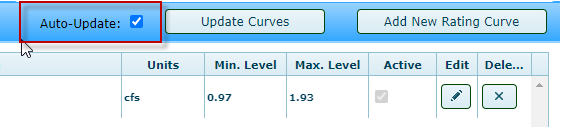
Keep in mind that the Auto-Update functionality will only add flow data for stage data collected from the time the button is selected into the future. It will not update data that has already been collected.
The Update Curves button – discussed in a following section, will allow formulas to be applied to historic data.
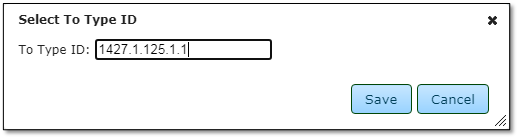
The first time a user selects “Auto-Update” a form will appear for a user to review, edit and approve the new measurement where the flow data will be written. TypeID’s are used to define the flow measurement (see TypeID in the Glossary).
In order for the tool to work, the TypeID used for flow data in the Merlin database must exist and be either:
1. A dual array with the first (stage) array defined as “Monitor” and the second (flow) measurement defined as “Calculated” (see below).
|
Original Stage Data Sensor ID
|
New Flow Data Sensor ID
|
|
1530.1.108.11.1
|
1530.1.108.11.2
|
In the table above the Array Type 108 is a dual Array which has been pre-configured to use this method. When the stage data is collected from the field it is stored in the ID field ending in “.1”. When the flow data is calculated it is stored in the field with the ID ending in “.2” (see below).
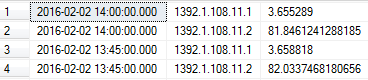
The ..11.1 measurement contains the original stage data, and the ..11.2 measurements contain the flow data derived from the rating curves.
2. A single array defined for flow and not in use for the selected station.
|
Original Stage Data Sensor ID
|
New Flow Data Sensor ID
|
|
1530.1.106.1.1
|
1530.1.125.1.1
|
The table above shows the rating curve tool would write flow data into the uFlow Array 125 from a uPressure Array 106 in the same Project and Station.
In both of these examples the flow data will get generated when stage data is collected in real time - as long as the curve settings fall within the thresholds of the date and value, and the “Auto-Update” setting is checked.
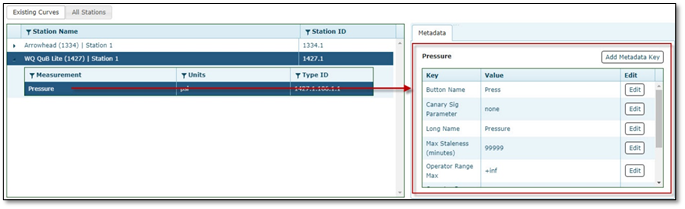
The name and units of the new ID can be changed through the Metadata display under the “Calculated” tab. User can also add new keys by clicking the “Add Metadata Key” button. Please notice that each measurement’s key cannot be duplicated.