
Manage Reports
The Manage Reports interface allows an Administrator to filter the report definitions that appear in the Reports tab.
For information on adding new reports, please refer to Add New Report.
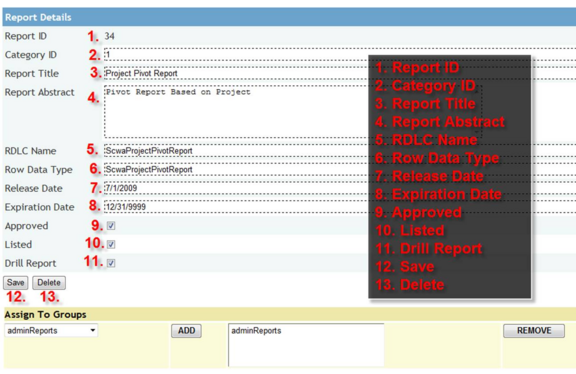
When adding or editing a report, the following controls are available:
1. Report ID: This unique identifier value is automatically generated by Merlin Web.
2. Category ID: This field determines the type of report. The catergories can be edited via Manage Report Categories.
There are currently 5 different Report Types:
0- Merlin Chart Service reports.
1- Merlin Web RDL reports
2- Merlin Web RDLC reports
3- Merlin Reporting Service HTML reports
5- Individualized reports
3. Report Title: The field is the short name for the report that will appear in the report listing.
4. Report Abstract: This field is a longer description of the report.
5. RDLC Name: This field identifies the RDLC report that is used to generate the report.
6. Row Data Type: This field is not currently used by Merlin Web.
7. Release Date: This field determines the first date the report is available.
8. Expiration Date: This field determines the last date the report is available.
9. Approved: If a report is not approved, a notification will appear above the report indicating that the report is not approved.
10. Listed: This field functions like the “Active” checkbox on other forms. Unlisted reports are not presented as choices in Merlin Web Report Selection interfaces.
11. Drill Report: A Drill report is a special type of report that generates further reports when selected. Because Drill reports are handled differently by the Application Code, they require identification using this field.
12. Save: This button saves changes made to a report definition or inserts a new report definition.
13. Delete: This button removes the selected report definition. Deleted definitions can not be recovered.
Underneath the form, an interface allows a report definition to be added to a group previously created using the Credential Manager.