
Credential Manager
The Credential Manager allows an Administrator to create Groups of items from the database and assign these Groups to Roles so they can be assigned to Users. Examples of “Roles” would be Administrator, Project Manager, or public. “Groups” might be Administrator Reports, Public Menu, or Common Reports.
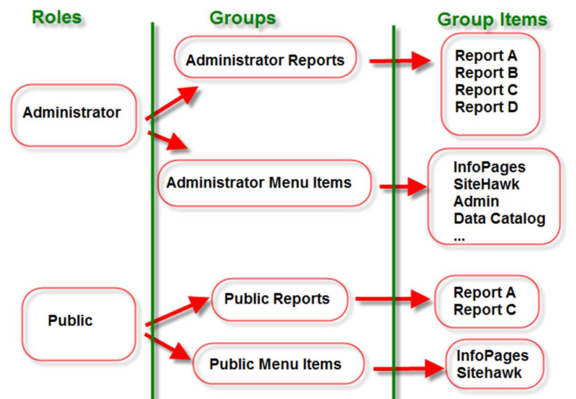
In the example above, customize reports and menu items for each role effortlessly. Adding a new user to a role grants instant access to associated resources, while removing them revokes access.
Groups are individual database items, like projects. Roles can include multiple groups. When creating a group, choose a database table and add items to create "Group Items." Admins need a basic understanding of database tables.
For example, if an admin creates a "Public Reports" group for the Public Role, anyone with that role gets access. Adding a new report is as simple as adding it to the "Public Reports" group.
The Credential Manager has two lists with buttons to move items. The left list is the "parent" to the right list.
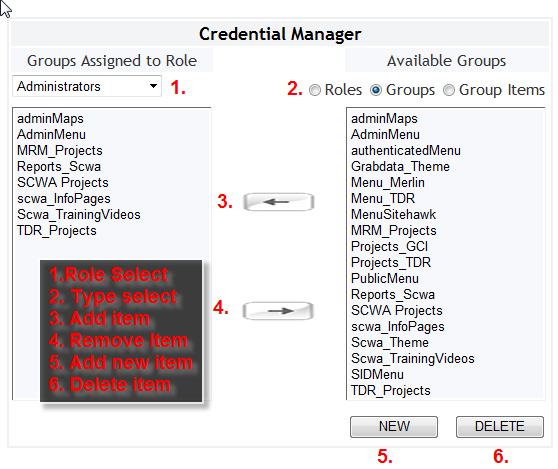
There are three separate screens in the Credential Manager: one for Roles, one for Groups, and one for Group Items. The general layout is the same for all three and consists of the following controls:
1. User/Role/Group Select: This drop-down box selects a higher-level item that utilizes all items in the right-hand list pane. In the figure above, the “Administrator” role contains the groups “adminMaps”,”AdminMenu”,”MRM_Projects”,”Reports_Scwa”,”SCWA Projects”,”scwa_InfoPages”,”Scwa_TrainingVideos”, and “TDR_Projects”.
2. Type Select: This section allows a user to view the Roles, Groups, or Group Items interface.
3. Add Item: This button moves a selected item from the right-side (available) list pane to the left-side (assigned) list pane.
4. Remove Item: This button moves a selected item from the left-side (assigned) list pane to the right-side (available) list pane.
5. Add New Item: The “New” button allows a new Role or Group to be created. Assigning a new role simply involves entering a new name for a role and submitting. Adding a new Group creates a new pop-up interface with the following controls: