
Data Quality
The data quality section is used to change data quality codes of data points.
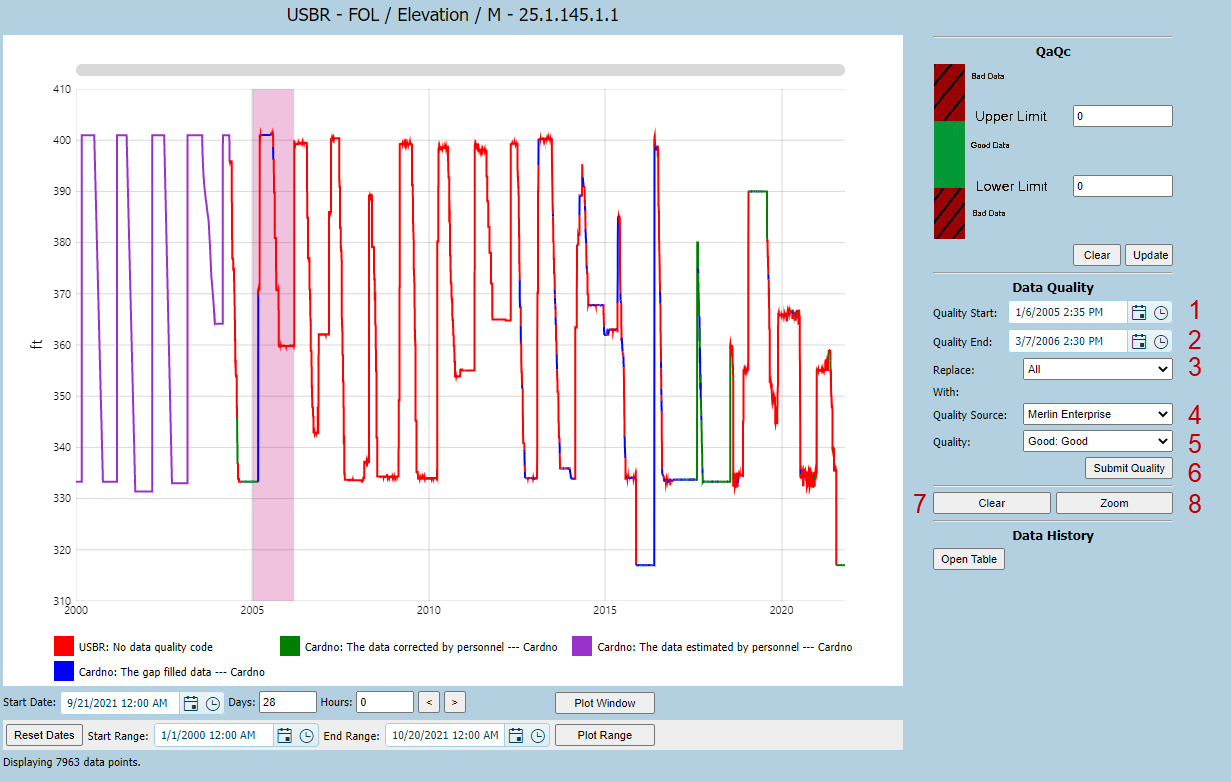
Referring to the numbers on the following image, The Quality Pass/Fail tool (middle right) contains the following:
1. Quality Start: This control can be used to set the start date for quality codes.
2. Quality End: This control can be used to set the end date for quality codes.
3. Replace: This drop-down list can be used to select the quality code needs to be replaced.
4. Quality Source: This drop-down list is used to select the source of the quality code. The “Quality Source” drop-down list only displays the existing sources of the data sets, the current station type and Merlin Enterprise. Such as a USBR station data series and it has some quality codes from CDEC. The “Quality Source” drop down list only displays source USBR, CDEC and Merlin Enterprise.
5. Quality: This drop-down list can be used to select the quality code used for replacement.
6. Submit Quality: This button is used to apply the new data quality codes for the data points in selected date range (either the pink area selected in data plot or datetime range selected by start date and end date).
7. Clear: This button is used to clear the information in the Data Quality section.
8. Zoom: This button is used to zoom in the data plot.
The example below shows the data quality codes changed by Data Quality tool.
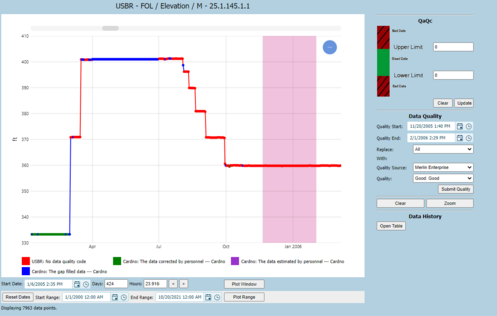 |
At the beginning all data is flagged as “No QCode” which means no defined quality code has been applied. The user selects a specific range that they want to apply a code.
|
 |
After the range has been selected choose what to replace from the first drop-down list – in this case All.
Then choose the code you want to apply from the “With” drop-down list. After your selection click on the “Submit Quality” button.
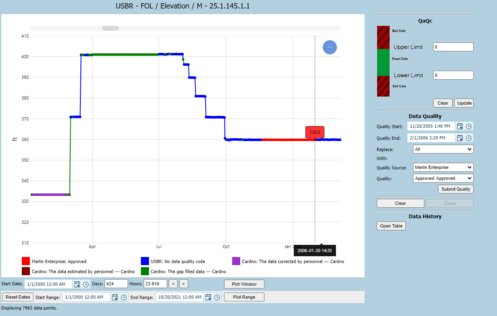
The plot shows the selected range replace with “Approved”
|
The Quality Source dropdown list only displays the existing sources, the current station type and the Merlin Enterprise. The Data Quality drop-down list displays the quality codes related to the selected source. For example, the above data set’s station type is ‘USBR’ and it has Cardno quality codes, so the Quality Source drop-down list displays three kinds of sources --- Merlin Enterprise, USBR and Cardno. (The Data Quality codes are added, defined and modified through the Merlin Enterprise desktop application.)